A Gmail SPF record helps receiving mail servers determine whether an email claiming to come from your domain was sent through an authorized mail server. If you use Gmail with a business domain, configuring SPF correctly can help prevent unauthorized email sending and authentication failures.
However, there is an important distinction: you cannot publish or modify an SPF record for a standard @gmail.com address because Google controls that domain's DNS. SPF configuration becomes relevant when you send emails using your own domain through Google Workspace or another email service.
For example, if your business email is contact@example.com and Gmail handles your outgoing messages, your domain may need this DNS TXT record:
v=spf1 include:_spf.google.com ~allThe correct configuration depends on which service actually sends your emails. This article explains how to identify your Gmail setup, choose the appropriate SPF record, configure DNS, and investigate authentication failures.
Quick Answer: What Is the Gmail SPF Record?
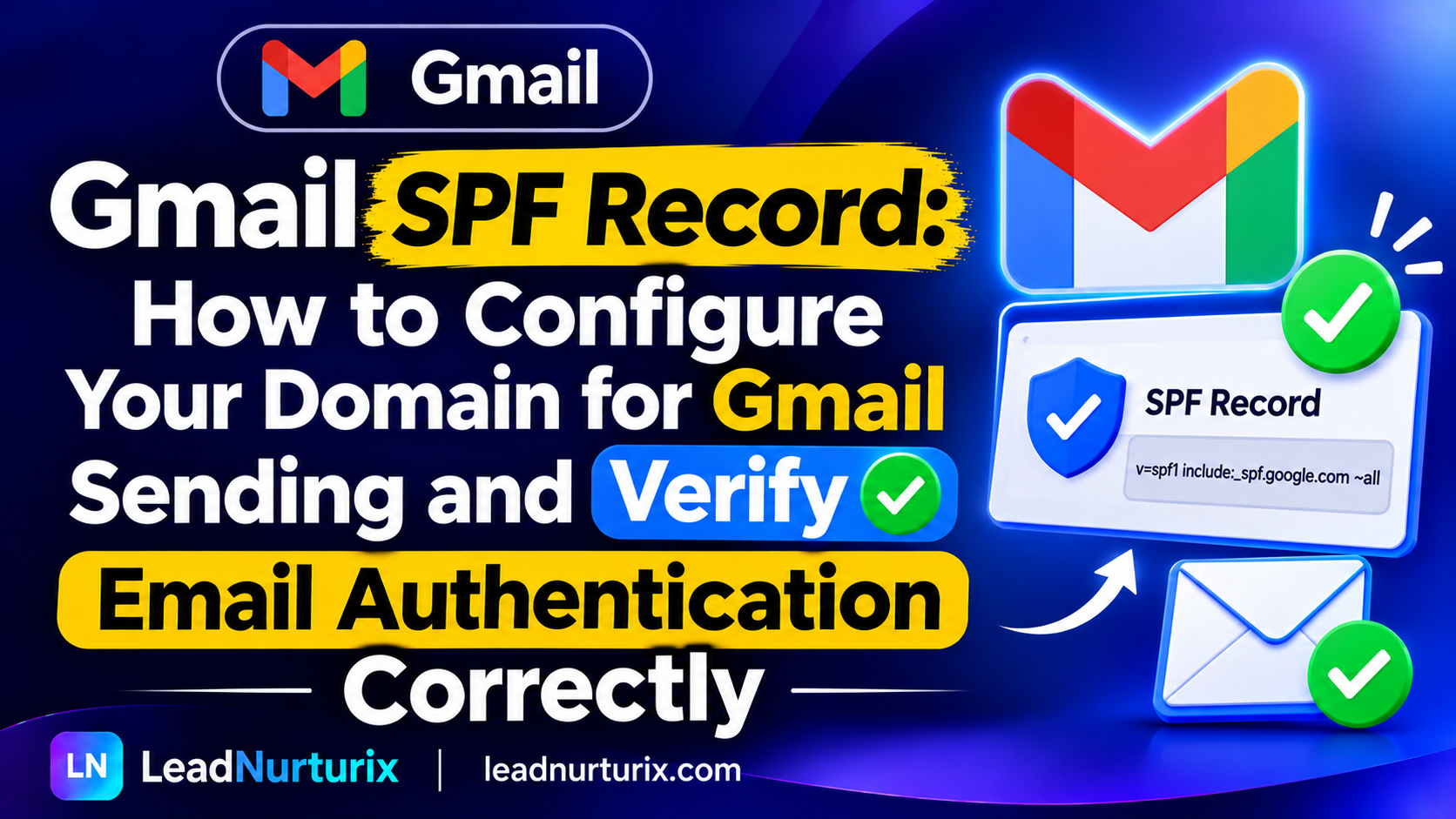
For a custom domain using Google Workspace as its only outgoing email provider, Google's recommended SPF value is:
v=spf1 include:_spf.google.com ~allUse the following DNS configuration:
| DNS Setting | Value |
|---|---|
| Record Type | TXT |
| Hostname | @ |
| SPF Value | v=spf1 include:_spf.google.com \~all |
| TTL | Auto or provider default |
If you use a different SMTP provider to send messages through Gmail's interface, your SPF record must authorize that provider instead of automatically assuming Google sends the messages.
Remember: Standard Gmail users with @gmail.com addresses do not need to create their own SPF records.
Table of Contents
- What Is a Gmail SPF Record?
- Do Regular Gmail Accounts Need SPF Records?
- Which SPF Record Should You Use for Gmail?
- How to Configure SPF for Gmail Sending
- How Gmail SPF Authentication Works
- How to Check Whether Gmail SPF Is Working
- Why Gmail SPF Authentication Fails
- Gmail SPF Configuration Best Practices
- Frequently Asked Questions
- Conclusion
What Is a Gmail SPF Record?
A Gmail SPF record is a DNS-based email authentication policy that identifies which sending servers are permitted to send messages on behalf of a particular domain.
SPF stands for Sender Policy Framework.
When an email reaches a receiving server, that server can perform an SPF check by comparing the sending server's IP address against the policy published in the relevant domain's DNS records.
For example, suppose your company owns example.com and uses Google Workspace to manage business email.
You send a message from:
hello@example.com
The receiving mail server evaluates the SPF policy for the relevant envelope sender domain. If the sending infrastructure is authorized by that policy, the SPF check can pass.
This helps receiving systems distinguish authorized email traffic from unauthorized sources.
Why Is Gmail SPF Different From a Regular Gmail Account?
The main difference is domain ownership.
Google controls the DNS infrastructure for gmail.com. Individual Gmail users cannot modify Google's SPF policy.
However, a business using a custom domain controls its own DNS settings and can publish an SPF record authorizing Google Workspace or another legitimate sending service.
This distinction is important when diagnosing Gmail authentication problems.
Do Regular Gmail Accounts Need SPF Records?
No. If you send messages using a standard Gmail address such as yourname@gmail.com, you do not need to publish an SPF record.
Google manages the authentication infrastructure for its own domain.
However, the situation changes when you use Gmail to send messages from a domain that you own.
Consider these three situations:
| Gmail Setup | Do You Need Your Own SPF Record? | What Should You Do? |
|---|---|---|
Personal @gmail.com account | No | Google manages domain authentication |
| Custom domain hosted on Google Workspace | Yes, if not already configured | Authorize Google in your domain's SPF record |
| Gmail interface using an external SMTP provider | Depends on your domain configuration | Authorize the actual outgoing email provider |
For example, if you use Gmail to access sales@yourcompany.com, identify the service responsible for delivering outgoing messages before changing DNS.
A Gmail interface does not necessarily mean Google is the actual outgoing SMTP provider.
Which SPF Record Should You Use for Gmail?
There is no universal SPF value for every Gmail configuration. Your record depends on the sending infrastructure associated with your domain.
Here are three common scenarios.
1. Gmail Through Google Workspace
If Google Workspace handles all outgoing messages for your custom domain, use:
v=spf1 include:_spf.google.com ~allThis authorizes Google's designated sending infrastructure.
2. Gmail With a Third-Party SMTP Provider
Some users connect external SMTP services to Gmail to send messages from a custom domain.
For example, a business might use Gmail as its email interface while an external SMTP provider handles outgoing delivery.
In this situation, the external provider must be considered when configuring SPF.
Do not automatically add Google's SPF mechanism unless Google Workspace also sends messages for the domain.
3. Gmail With Multiple Email Sending Services
Businesses frequently use several email platforms simultaneously.
For example:
- Google Workspace for employee communication.
- Mailchimp for newsletters.
- Amazon SES for application notifications.
- Salesforce for customer communication.
If all these services send messages using the same domain, they must be authorized in one SPF record.
For example:
v=spf1 include:_spf.google.com include:servers.mcsv.net include:amazonses.com ~allThis is an illustrative configuration. Confirm the current SPF instructions of each provider before publishing it.
Google provides examples of combining multiple sending services in its official SPF setup documentation.
How to Configure SPF for Gmail Sending
If you use a custom domain with Google Workspace, follow this process to publish your SPF record.
Step 1: Identify Your Sending Infrastructure
Start by identifying the services that send email using your domain.
Check whether outgoing messages come from:
- Google Workspace.
- A third-party SMTP server.
- Your website hosting server.
- An email marketing platform.
- An application or CRM system.
This step prevents you from publishing an incomplete SPF policy.
Step 2: Check Your Existing DNS Records
Before creating a new SPF record, inspect your domain's existing TXT records.
Look for a value beginning with:
v=spf1If you find an existing SPF record, examine its authorized sending services.
Do not publish a second SPF record for the same domain.
You can use the LeadNurturix DNS Lookup Tool to inspect publicly available DNS records.
Step 3: Prepare the Correct SPF Value
If Google Workspace is your only outgoing email provider, use:
v=spf1 include:_spf.google.com ~allIf other platforms send email from your domain, incorporate their authorized sending mechanisms into the existing record.
Make sure you do not exceed SPF's DNS lookup limit of 10.
Step 4: Publish the SPF Record
Log in to your domain's DNS provider.
Create a TXT record with these values if your domain does not already have an SPF record.
| Field | Configuration |
|---|---|
| Type | TXT |
| Name | @ |
| Value | v=spf1 include:_spf.google.com \~all |
| TTL | Automatic |
If an SPF record already exists, edit that record rather than creating another one.
Save your changes.
Step 5: Allow DNS Updates to Become Available
DNS changes may take time to become visible across different DNS resolvers.
Google notes that SPF authentication can take up to 48 hours to start working after configuration.
Avoid repeatedly creating or modifying records simply because an immediate lookup does not show your latest changes.
Step 6: Send a Test Email
Send an email from your custom-domain Gmail account to an address where you can inspect the original message headers.
Open the received message and locate its authentication results.
Look for:
spf=passThis indicates that the evaluated SPF check succeeded.
Also verify which domain was authenticated because SPF passing alone does not automatically establish DMARC alignment.
How Gmail SPF Authentication Works
Understanding the authentication process makes it easier to diagnose delivery problems.
Here is what happens when you send an email from a custom domain.
- You compose a message in Gmail.
- Your configured email sending service transmits the message.
- The receiving mail server identifies the relevant sending IP address and envelope sender domain.
- The receiving server retrieves the SPF policy for that domain.
- It evaluates whether the sending IP is authorized.
- The receiving server records an SPF authentication result.
The result can be one of several outcomes.
| SPF Result | Meaning |
|---|---|
| Pass | The sending IP is authorized |
| Fail | The sending IP is explicitly unauthorized |
| Softfail | The sending IP is not authorized under a softfail policy |
| Neutral | The SPF policy makes no definitive authorization statement |
| None | No applicable SPF policy was found |
| PermError | The SPF record contains a permanent evaluation error |
| TempError | A temporary DNS or evaluation problem occurred |
An SPF pass is a positive authentication signal, but it does not guarantee that Gmail or another receiving provider will place the message in the inbox.
How to Check Whether Gmail SPF Is Working
There are two practical ways to verify your SPF configuration.
Method 1: Run an SPF DNS Test
Use an SPF lookup tool to retrieve the publicly published record for your domain.
With the LeadNurturix SPF Checker, you can:
- Enter your domain.
- Start the SPF lookup.
- Inspect the detected TXT record.
- Check whether the record contains the expected sending provider.
- Review reported configuration errors.
This helps you determine whether your DNS configuration is published correctly.
Method 2: Inspect Gmail Email Headers
An SPF lookup confirms what your domain publishes, but an actual message test checks how a receiving server evaluates a particular email.
To perform this test:
- Send an email from your custom-domain Gmail account.
- Open the received message in Gmail.
- Click the three-dot menu.
- Select Show original.
- Find the Authentication-Results section.
- Review the SPF result and authenticated domain.
Example:
Authentication-Results:
spf=pass
dkim=pass
dmarc=pass
This is an illustrative example of successful authentication results, not a guaranteed result for every message.
If SPF passes but DMARC fails, investigate whether the authenticated SPF domain aligns with the domain shown in the visible From address.
Why Gmail SPF Authentication Fails
A published SPF record does not guarantee that every outgoing message will pass authentication.
Here are common reasons why Gmail-related messages may fail SPF checks.
1. Your SPF Record Does Not Authorize the Actual Sending Server
This happens when a domain uses an external SMTP provider but only authorizes Google Workspace.
For example, a business may configure Gmail to send through another SMTP service without updating its SPF policy.
Solution: Identify the actual outgoing provider and authorize it in your existing SPF record.
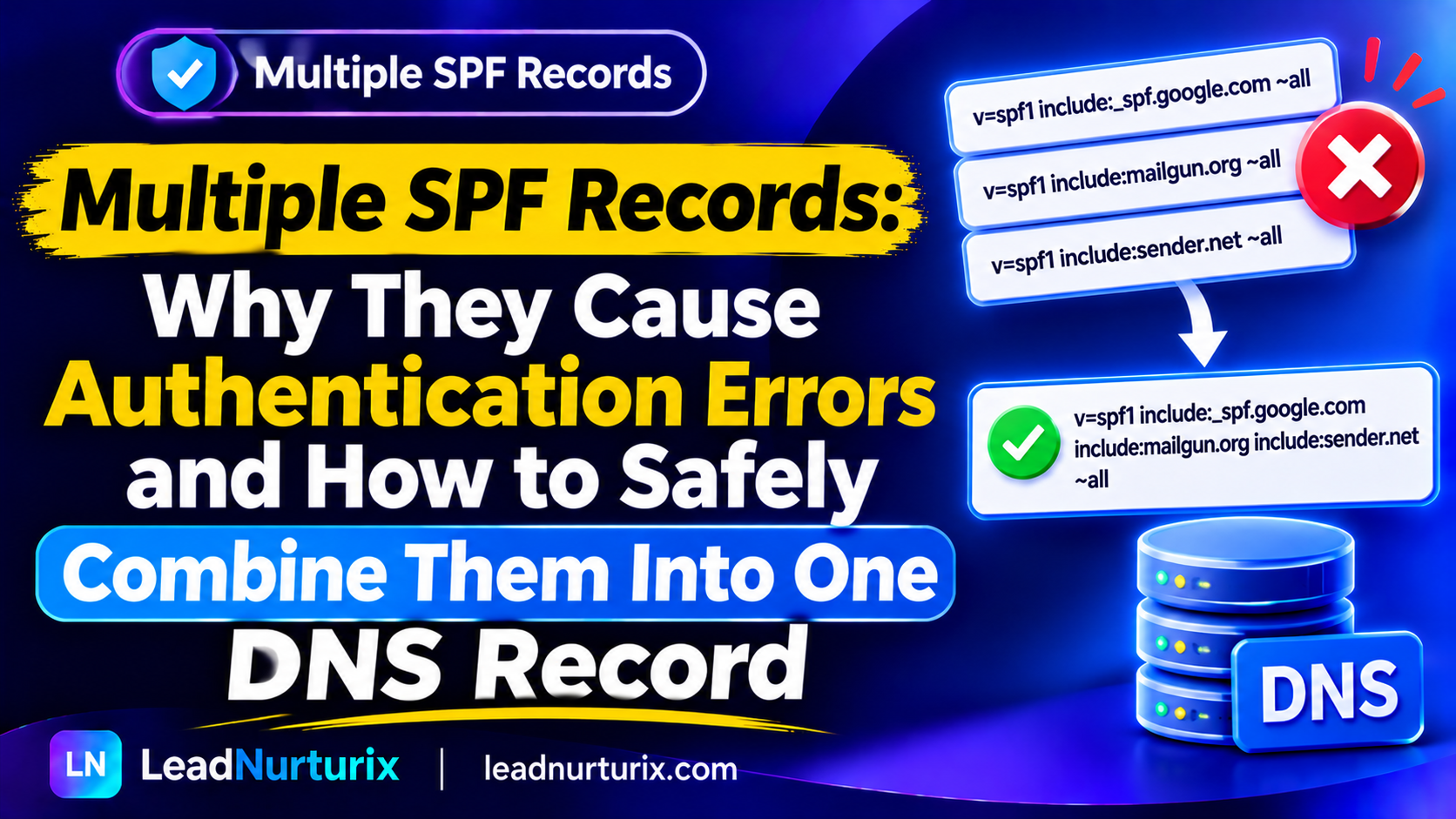
2. You Have Multiple SPF Records
Publishing multiple SPF TXT records can result in a permanent SPF evaluation error.
Solution: Consolidate all authorized sending services into one SPF record.
3. Your SPF Record Exceeds the DNS Lookup Limit
SPF evaluation allows a maximum of 10 DNS-querying terms.
Nested include mechanisms can contribute to this limit even when the main record appears short.
Solution: Review unnecessary providers, nested lookups, and duplicate mechanisms.
4. Your DNS Record Contains Incorrect Syntax
A misplaced qualifier, incorrect domain, or missing mechanism can cause authentication problems.
For example:
Incorrect:
v=spf1 include _spf.google.com ~allCorrect:
v=spf1 include:_spf.google.com ~allThe colon after include is required.
5. Email Forwarding Changes the Sending IP
Email forwarding can create SPF failures.
For example, an email originally sent through Google Workspace might be forwarded by another mail server. The receiving server can evaluate the forwarding server's IP against the original sender's SPF policy.
That forwarding server may not be authorized.
Solution: Review your forwarding configuration and consider DKIM and other authentication-preserving forwarding practices.
Google explains additional forwarding considerations in its Gmail sender guidelines.
Gmail SPF Configuration Best Practices
For businesses using Gmail with custom domains, follow these recommendations.
1. Authorize every legitimate sending service. Maintain an accurate inventory of platforms that send messages using your domain.
2. Maintain one SPF record per domain. Combine the required sending mechanisms rather than publishing separate records.
3. Monitor DNS lookup usage. Keep the complete SPF evaluation within the 10-lookup limit.
4. Avoid unnecessary IP authorization. Only authorize sending infrastructure that you actually control or legitimately use.
5. Configure DKIM. DKIM provides a separate cryptographic authentication mechanism.
6. Implement DMARC. DMARC checks authentication alignment and provides policy and reporting capabilities.
7. Test actual outgoing messages. A DNS lookup cannot replace checking the authentication results of real email traffic.
For additional verification, explore the LeadNurturix DKIM Checker and DMARC Checker.
Frequently Asked Questions
1. What is the SPF record for Gmail?
For Google Workspace sending exclusively through Google, the recommended SPF record is:
v=spf1 include:_spf.google.com ~all
Standard personal Gmail users do not need to publish their own SPF records.
2. Does Gmail have an SPF record?
Yes. Google publishes SPF policies for its email infrastructure, including Gmail. Individual users cannot modify the SPF record for gmail.com.
3. Can I create an SPF record for my personal Gmail account?
No. You cannot publish DNS records for gmail.com because Google owns and manages that domain.
If you own a custom domain and use Gmail through Google Workspace, you can configure SPF through your domain's DNS provider.
4. Does Gmail use SPF or DKIM?
Google uses both SPF and DKIM as email authentication mechanisms. DMARC provides an additional layer of policy enforcement and alignment.
5. Why does my Gmail email fail SPF authentication?
Common reasons include an incorrect SPF record, an unauthorized SMTP provider, multiple SPF records, excessive DNS lookups, or forwarding-related changes to the sending IP.
6. Can I use Gmail and another SMTP service with the same domain?
Yes. You can authorize Google Workspace and other legitimate SMTP providers in a single SPF record.
The exact configuration depends on the services sending your messages.
7. How do I check my Gmail SPF record?
Use an SPF lookup tool to inspect your domain's DNS TXT record. Then send a test message and inspect its original headers for the SPF authentication result.
8. Does Gmail SPF guarantee inbox placement?
No. SPF supports email authentication but does not guarantee inbox delivery. Domain reputation, DKIM, DMARC, sending behavior, content, and recipient engagement also influence email placement.
Conclusion
Configuring the correct Gmail SPF record starts with understanding how your email account sends messages.
If you use a personal @gmail.com address, Google manages its domain authentication, so you do not need to create an SPF record.
If you use Gmail through Google Workspace with a custom domain, your standard Google-only SPF configuration is:
v=spf1 include:_spf.google.com ~allIf an external SMTP service also sends emails using your domain, authorize that provider in the same SPF record.
Finally, verify your DNS configuration and test actual outgoing messages through their authentication headers.
For ongoing email authentication checks, use the free LeadNurturix SPF Checker and review your domain's complete SPF, DKIM, and DMARC configuration.
Editorial Policy
LeadNurturix creates educational resources covering email authentication, email deliverability, DNS configuration, and outbound email infrastructure.
Our editorial approach prioritizes accurate technical information, practical troubleshooting, and clear explanations. We use official documentation from email service providers when explaining provider-specific requirements.
Content Transparency Statement
This article is independently prepared for educational purposes using publicly available technical documentation.
SPF examples are illustrative and must be adjusted according to the actual services sending emails from your domain. Third-party providers may update their authentication requirements, so consult their current documentation before changing DNS records.
About the Author
Talha Rafi – Cold Email & Email Deliverability Specialist
Talha Rafi is an email deliverability and B2B lead generation specialist with over five years of experience in email authentication, cold email infrastructure, DNS configuration, and outbound campaign management.
Through LeadNurturix, he shares practical insights to help businesses build reliable email systems, troubleshoot authentication issues, and improve their email delivery infrastructure.