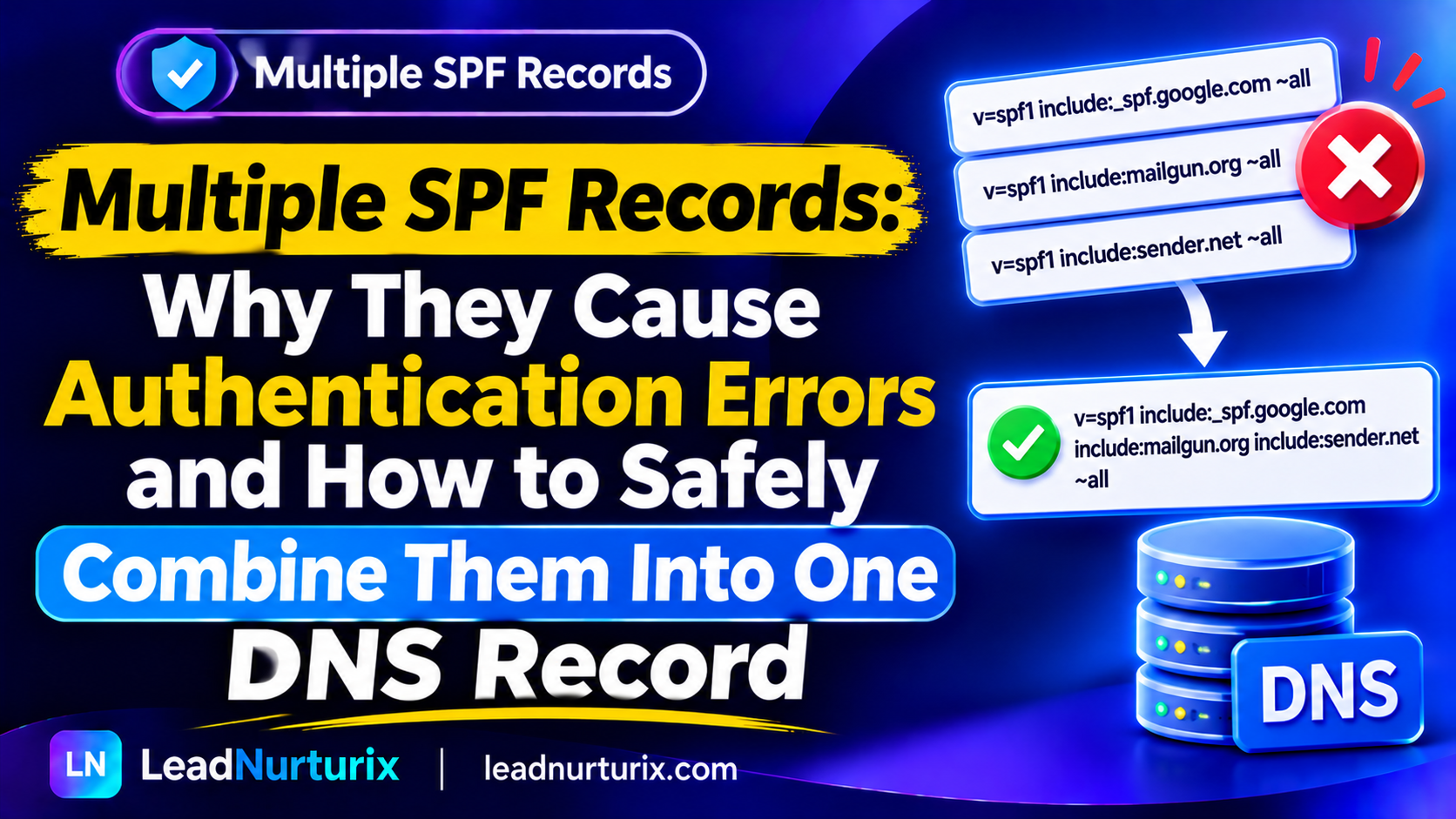
Finding multiple SPF records in your domain's DNS settings can create a serious email authentication problem. You might have added one SPF record for Google Workspace, another for Microsoft 365, and a third for an email marketing platform. Although each record may look correct individually, publishing multiple SPF policies at the same hostname can cause receiving mail servers to return an SPF Permanent Error (PermError).
The solution is not to delete every record randomly or choose whichever one looks more important. You need to identify which services actually send email using the same envelope-sender domain and combine their authorized sending mechanisms into one valid SPF policy.
This article explains why multiple SPF records cause problems, how to identify duplicate records, how to combine different email providers safely, and how to verify that your corrected SPF configuration works.
Quick Answer: Can You Have Multiple SPF Records?
No. You should publish only one SPF record for each domain or subdomain that sends email.
If a hostname has two or more TXT records beginning with v=spf1, receiving mail servers can return:
spf=permerrorInstead of creating separate SPF records for each email provider, combine the required authorization mechanisms into one SPF policy.
For example, if Google Workspace and Microsoft 365 both send email using the same SPF-authenticated domain, an illustrative combined record is:
v=spf1 include:_spf.google.com include:spf.protection.outlook.com ~allThis example is appropriate only when both services genuinely send using that same hostname. Always verify the required values with the providers.
Table of Contents
- What Are Multiple SPF Records?
- Why Are Multiple SPF Records a Problem?
- What Happens When a Domain Has Two SPF Records?
- Common Reasons Multiple SPF Records Appear
- How to Find Multiple SPF Records in DNS
- How to Combine Multiple SPF Records Into One
- Examples of Combining SPF Records for Different Providers
- How to Fix Multiple SPF Records Errors
- How to Verify Your Corrected SPF Record
- Best Practices to Prevent Duplicate SPF Records
- Frequently Asked Questions
1. What Are Multiple SPF Records?
An SPF record is a DNS TXT record that identifies which mail servers are authorized to send email using a particular domain.
It begins with:
v=spf1For example, a domain using Google Workspace alone might publish:
v=spf1 include:_spf.google.com ~allA domain using Microsoft 365 alone might publish:
v=spf1 include:spf.protection.outlook.com -allBoth are examples of valid SPF policies for their respective configurations.
The problem occurs when a domain publishes both policies as separate SPF records at the same hostname.
Example of Multiple SPF Records
Imagine your domain has these two DNS TXT records:
Record 1:
v=spf1 include:_spf.google.com ~allRecord 2:
v=spf1 include:spf.protection.outlook.com ~allYou might think receiving servers will check both records and authorize messages from either provider.
That is not how SPF works.
A receiving server expects one SPF policy for the queried hostname. When multiple SPF records are returned, SPF evaluation can produce a PermError.
The correct approach is to combine the required mechanisms into one policy.
2. Why Are Multiple SPF Records a Problem?
SPF follows the rules defined in RFC 7208, the technical standard for Sender Policy Framework.
According to the standard, when an SPF lookup finds more than one applicable SPF record, the evaluation returns a Permanent Error.
This means receiving mail servers cannot simply choose one record or merge them automatically.
What Is SPF PermError?
PermError stands for Permanent Error.
It indicates that the SPF policy could not be evaluated correctly because of a permanent problem with the published configuration.
Multiple SPF records are one common cause.
For example:
v=spf1 include:_spf.google.com ~all
v=spf1 include:servers.mcsv.net ~all
A receiving server may return:
spf=permerrorThis is different from an SPF fail.
| SPF result | Meaning |
|---|---|
| Pass | The sending IP is authorized |
| Fail | The sending IP is not authorized under the policy |
| Softfail | The policy indicates that the sending IP is probably unauthorized |
| Neutral | The policy does not explicitly authorize or deny the sending IP |
| None | No applicable SPF record was found |
| PermError | The SPF policy has a permanent evaluation problem |
| TempError | A temporary DNS or evaluation problem occurred |
Can Multiple SPF Records Affect Email Deliverability?
Yes, they can.
When SPF evaluation returns PermError, receiving providers cannot establish a valid SPF result from that policy.
Depending on the recipient's email security rules, messages may be:
- Rejected.
- Marked as suspicious.
- Sent to spam.
- Evaluated using other authentication signals.
However, multiple SPF records do not automatically mean every email will go to spam. Receiving systems can evaluate DKIM and DMARC separately, and their filtering decisions vary.
The important point is that your SPF configuration is invalid and should be corrected.
3. What Happens When a Domain Has Two SPF Records?
Consider a company that uses multiple email platforms.
Its DNS settings contain:
| Record | SPF value | Purpose |
|---|---|---|
| TXT 1 | v=spf1 include:_spf.google.com ~all | Google Workspace |
| TXT 2 | v=spf1 include:spf.protection.outlook.com ~all | Microsoft 365 |
| TXT 3 | v=spf1 include:servers.mcsv.net ~all | Mailchimp |
Each record was added to authorize a different email service.
However, if all three records belong to the same DNS hostname, this is not a valid SPF configuration.
Receiving servers do not combine these three records automatically.
Correct Configuration
If all three services legitimately send using the same SPF-authenticated hostname, the mechanisms can be combined into one policy:
v=spf1 include:_spf.google.com include:spf.protection.outlook.com include:servers.mcsv.net ~allNow there is one SPF policy containing the required authorization mechanisms.
Remember that this example must be checked against the actual providers and the SPF DNS lookup limit before implementation.
4. Common Reasons Multiple SPF Records Appear
Understanding how duplicate records are created helps prevent the problem from happening again.
1. Adding a New Email Provider Without Checking Existing DNS
A business may already use Google Workspace and later start using Microsoft 365.
An administrator adds Microsoft's SPF value as a new TXT record without reviewing the existing Google SPF policy.
This creates multiple SPF records at the same hostname.
2. Installing an Email Marketing Platform
Businesses often add platforms such as Mailchimp, SendGrid, or Amazon SES for newsletters and transactional messages.
Each provider may provide SPF authentication instructions.
If users follow those instructions by creating a separate SPF TXT record, they can accidentally introduce duplicates.
3. Copying SPF Records From Online Tutorials
A user may find different SPF examples online and add several of them without understanding how SPF policies work.
For example:
- One tutorial recommends a Google Workspace SPF record.
- Another recommends a Microsoft 365 record.
- A third recommends a GoDaddy or email marketing record.
Copying all of them into the same DNS hostname creates a conflict.
4. Changing Email Hosting Providers
When migrating from one email provider to another, administrators sometimes add the new SPF record but forget to update or remove the old policy.
This can leave multiple SPF records in DNS.
5. Manually Adding a Record That Already Exists
Some hosting and email platforms automatically create DNS records.
If an administrator manually adds the same SPF policy again, duplicate records can appear.
Before adding an SPF record, always inspect the existing DNS configuration.
5. How to Find Multiple SPF Records in DNS
Before changing anything, confirm whether your domain actually has multiple SPF records.
You can use a DNS lookup tool, a terminal command, or an SPF checker.
Method 1: Use an SPF Checker
Open the LeadNurturix SPF Checker.
Enter your domain and inspect the SPF results.
A suitable checker can help identify:
- Whether an SPF record exists.
- Whether multiple SPF policies are published.
- Whether the SPF syntax is valid.
- Whether the DNS lookup limit may be exceeded.
- Whether additional configuration problems exist.
Method 2: Use the NSLookup Command
Windows users can use Command Prompt to check TXT records.
Open Command Prompt and enter:
nslookup -type=TXT example.comReplace example.com with your domain.
Review the returned TXT records.
If you find more than one record beginning with v=spf1, investigate the configuration.
Method 3: Use the DIG Command
On Linux and macOS, run:
dig TXT example.comYou can also use:
dig +short TXT example.comLook for every returned TXT value beginning with:
v=spf1Do not count every TXT record as an SPF record. Your domain may also have TXT records for verification, DMARC, or other services.
Important: Check the Correct Hostname
SPF policies are evaluated for the relevant envelope-sender domain, not necessarily only the root domain.
For example:
example.com
mail.example.com
bounce.example.com
These are different DNS names.
A domain can have one SPF policy at its root and a separate SPF policy at a sending subdomain.
The rule is one SPF policy per hostname, not one SPF record for every domain and subdomain combined.
6. How to Combine Multiple SPF Records Into One
Once you confirm that multiple SPF policies exist at the same hostname, identify the services that actually send email using that hostname.
Then consolidate their required mechanisms into one record.
Follow these steps.
Step 1: Collect All Existing SPF Records
Suppose your DNS contains:
v=spf1 include:_spf.google.com ~allAnd:
v=spf1 include:spf.protection.outlook.com ~allAnd:
v=spf1 include:servers.mcsv.net ~allCopy the existing values before making any changes.
Step 2: Identify the Active Email Providers
Find out which services currently send messages using the same envelope-sender domain.
For example:
| Provider | Sending purpose |
|---|---|
| Google Workspace | Business email |
| Microsoft 365 | Another authorized mail system |
| Mailchimp | Marketing campaigns |
Do not automatically include every service mentioned in your DNS records.
An old provider may no longer send email for your domain.
Step 3: Remove Duplicate SPF Terminators
Each original record ends with an all mechanism, such as:
~allor:
-allWhen combining policies, you should not copy all the original all mechanisms into the middle of the new record.
The final SPF policy should contain one appropriate ending mechanism.
Step 4: Combine the Required Mechanisms
An illustrative combined policy for the three providers above is:
v=spf1 include:_spf.google.com include:spf.protection.outlook.com include:servers.mcsv.net ~allThis record contains:
- One SPF version declaration.
- Three provider authorization mechanisms.
- One final
allmechanism.
The ~all qualifier represents softfail for sources that do not match the preceding mechanisms.
Choose the final qualifier according to your provider's guidance and your organization's sending policy.
Step 5: Update the DNS TXT Record
Open your DNS provider's dashboard.
Find the existing SPF TXT records for the hostname.
Replace the duplicate SPF policies with the single consolidated policy.
Do not delete unrelated TXT records, such as domain verification or DMARC records.
Step 6: Save and Verify
Save the new SPF record.
Allow time for DNS changes to propagate, then check the domain again using an SPF checker or DNS lookup.
Finally, send test messages through your legitimate email services and inspect the authentication results.
7. Examples of Combining SPF Records for Different Providers
The following examples illustrate how multiple email providers can be represented in one SPF policy.
Use the examples only after confirming that the services send using the same SPF-authenticated hostname.
Google Workspace + Microsoft 365
Separate policies:
v=spf1 include:_spf.google.com ~allv=spf1 include:spf.protection.outlook.com ~allCombined example:
v=spf1 include:_spf.google.com include:spf.protection.outlook.com ~allGoogle Workspace + GoDaddy
Separate policies:
v=spf1 include:_spf.google.com ~allv=spf1 include:secureserver.net ~allCombined example:
v=spf1 include:_spf.google.com include:secureserver.net ~allGoogle Workspace + Amazon SES
Separate policies:
v=spf1 include:_spf.google.com ~allv=spf1 include:amazonses.com ~allCombined example:
v=spf1 include:_spf.google.com include:amazonses.com ~allGoogle Workspace + Mailchimp
Separate policies:
v=spf1 include:_spf.google.com ~allv=spf1 include:servers.mcsv.net ~allCombined example:
v=spf1 include:_spf.google.com include:servers.mcsv.net ~allImportant Note About These Examples
Combining SPF mechanisms is not simply a matter of placing every provider's include value into one long string.
You must verify:
- Whether each service actually sends using the same SPF hostname.
- Whether the provider's SPF mechanism is still current.
- Whether the combined policy stays within the 10 DNS lookup limit.
- Whether the final qualifier matches your email security policy.
Some services use a separate return-path or bounce subdomain. If their SPF authentication happens on a different hostname, you may not need to combine their mechanisms with your root-domain SPF record.
8. How to Fix Multiple SPF Records Errors
If your email authentication tool reports multiple SPF records, use this troubleshooting process.
| Problem | Recommended action |
|---|---|
| Two SPF TXT records found | Consolidate them into one policy |
| SPF PermError | Check for duplicate policies and syntax problems |
| Old provider still appears | Confirm whether it sends email, then remove obsolete authorization if no longer needed |
| New provider fails SPF | Confirm its mechanism is included at the correct hostname |
| SPF lookup limit exceeded | Review nested DNS lookups and remove unnecessary mechanisms |
| SPF record not found | Check the envelope-sender hostname and authoritative DNS provider |
Do Not Delete Records Without Checking Their Purpose
Suppose you find:
v=spf1 include:_spf.google.com ~alland:
v=spf1 include:spf.protection.outlook.com ~allDeleting the Microsoft record without checking your sending infrastructure could cause legitimate Microsoft 365 messages to fail SPF.
Likewise, keeping every mechanism without checking whether the services are active can unnecessarily complicate your SPF policy.
The correct approach is to audit first and then consolidate.
What If Your Combined SPF Record Exceeds the DNS Lookup Limit?
SPF allows a maximum of 10 DNS-triggering lookups during evaluation.
Mechanisms such as include, a, mx, exists, and redirect can consume lookup capacity. Nested lookups also count.
If your consolidated record exceeds this limit, it can produce another SPF PermError even though you now have only one SPF record.
Possible solutions include:
- Removing unused email provider mechanisms.
- Removing duplicate or unnecessary DNS-based mechanisms.
- Using supported static IP authorization where appropriate.
- Reviewing provider-supported SPF optimization options.
- Considering a properly maintained SPF flattening solution where appropriate.
Do not flatten SPF records by copying IP addresses from a provider's current DNS response and forgetting about them. Provider IP ranges can change, so any flattened configuration needs ongoing maintenance.
9. How to Verify Your Corrected SPF Record
After consolidation, check both the published DNS policy and actual email authentication results.
Check the DNS Record
Use the LeadNurturix SPF Checker to inspect your SPF configuration.
You should confirm:
- Only one SPF policy exists at the hostname.
- The record begins with
v=spf1. - All legitimate sending services are included.
- The syntax is valid.
- The DNS lookup count does not exceed the limit.
Test Using DNS Lookup
Run:
nslookup -type=TXT example.comOr:
dig +short TXT example.comConfirm that the correct consolidated policy is published.
Send Test Emails
Send messages through the email providers you have authorized.
Open the full email headers and inspect the Authentication-Results section.
A successful result may look like:
spf=pass
dkim=pass
dmarc=pass
Test each sending service separately. One service passing SPF does not prove that every other service is correctly configured.
Also remember that SPF pass does not automatically guarantee DMARC pass. DMARC requires alignment with the visible From domain through SPF or DKIM.
10. Best Practices to Prevent Duplicate SPF Records
Use these practices to keep your SPF configuration valid.
1. Check Existing DNS Before Adding a New SPF Record
Always inspect your DNS TXT records before setting up a new email service.
2. Maintain One SPF Policy Per Hostname
Multiple providers can be authorized in one SPF policy. Do not create separate SPF records for each provider at the same hostname.
3. Remove Unused Email Services
If you no longer use an email platform, review whether its SPF mechanism is still necessary.
Remove obsolete authorization only after confirming that no active service depends on it.
4. Monitor the 10 DNS Lookup Limit
A single SPF record can still fail if it triggers too many DNS lookups.
Check nested include mechanisms and other DNS-based mechanisms.
5. Keep Subdomain Authentication Separate Where Appropriate
A marketing platform may use a dedicated bounce subdomain, while your business email uses the root domain.
Check the actual envelope-sender domain before combining records.
6. Configure DKIM and DMARC Alongside SPF
SPF is only one part of email authentication.
Configure DKIM and DMARC, then review real email authentication results.
11. Frequently Asked Questions
Can I have two SPF records for one domain?
No. A hostname should publish only one SPF policy. Multiple TXT records beginning with v=spf1 can cause receiving servers to return SPF PermError.
What happens if I have multiple SPF records?
Receiving mail servers may return a Permanent Error because they cannot select one valid SPF policy from multiple applicable records. This can interfere with SPF authentication and affect message handling.
How do I fix multiple SPF records?
Identify all legitimate sending services using the same SPF hostname, combine their required authorization mechanisms into one policy, remove the duplicate SPF records, and verify the result.
Can I combine Google Workspace and Microsoft 365 SPF records?
Yes, if both services genuinely send using the same SPF-authenticated hostname.
An illustrative combined record is:
v=spf1 include:_spf.google.com include:spf.protection.outlook.com ~allVerify the provider requirements and DNS lookup count before publishing it.
Can I have different SPF records for subdomains?
Yes. Each subdomain can have its own SPF policy.
For example, example.com and marketing.example.com are separate DNS hostnames and can have separate SPF records when each sends email.
Does having multiple SPF records cause PermError?
Yes. Under RFC 7208, if an SPF lookup returns more than one applicable SPF record, the evaluation produces PermError.
Should I delete one of my SPF records?
Do not delete one randomly. First identify the email services that use the hostname, then combine the necessary mechanisms into one policy. Remove obsolete or duplicate records only after checking their purpose.
Can multiple SPF records cause emails to go to spam?
They can contribute to authentication problems, and some receiving systems may treat affected messages as suspicious or reject them. However, spam placement depends on other factors too, including DKIM, DMARC, sender reputation, and recipient-provider filtering.
How many SPF records can a domain have?
One SPF policy per hostname. A root domain and its individual subdomains can each have their own separate SPF policy.
What is the difference between multiple SPF records and multiple SPF mechanisms?
Multiple SPF records are separate DNS policies at the same hostname and can cause PermError.
Multiple SPF mechanisms are authorization entries inside one SPF policy. For example, several include mechanisms can exist in one valid record, subject to SPF syntax and DNS lookup limits.
Conclusion
Multiple SPF records are a common DNS configuration problem, especially when businesses use several email providers.
The important rule is simple: publish one SPF policy per hostname, not one separate record for every email service.
Before fixing duplicates, identify which services actually send email using the same envelope-sender domain. Combine the necessary mechanisms into one policy, check the DNS lookup limit, remove obsolete records, and verify authentication through real test emails.
A properly consolidated SPF configuration helps receiving mail servers evaluate your authorized sending sources without encountering conflicts caused by duplicate policies.
Editorial Policy
LeadNurturix publishes educational content about email authentication, DNS configuration, and email deliverability. Technical recommendations are based on established email authentication standards and relevant provider documentation.
Content Transparency
SPF examples in this article are illustrative. The correct mechanisms depend on the email providers and sending domains used by your organization. Verify provider-specific DNS instructions before changing your production SPF policy.
About the Author
Talha Rafi is an Email Deliverability Specialist and B2B Lead Generation professional with over five years of experience in cold email infrastructure, email authentication, domain configuration, and outbound email systems. Through LeadNurturix, he shares practical insights to help businesses understand and improve their email setup.