A Google Workspace SPF record tells receiving mail servers which systems are authorized to send emails on behalf of your domain. If you use Google Workspace for business email, publishing the correct SPF record helps receiving servers verify legitimate messages and reduces the risk of email spoofing.
The recommended SPF record for domains that send email exclusively through Google Workspace is:
v=spf1 include:_spf.google.com ~allYou must publish this value as a DNS TXT record with your domain provider. If you also send emails through third-party platforms, such as Mailchimp, Salesforce, or an email marketing service, you must authorize those senders in the same SPF record.
This article explains how to configure, verify, and troubleshoot your Google Workspace SPF record.
Quick Answer: What Is the Correct Google Workspace SPF Record?
The standard Google Workspace SPF record is:
v=spf1 include:_spf.google.com ~allUse this configuration if Google Workspace is the only service sending emails from your domain.
| DNS Field | Value |
|---|---|
| Record Type | TXT |
| Host / Name | @ |
| Value | v=spf1 include:_spf.google.com \~all |
| TTL | Automatic or provider default |
Important: Do not create a second SPF record if your domain already has one. Update the existing record to include Google Workspace and every other legitimate email sender.
Table of Contents
- What Is a Google Workspace SPF Record?
- Why Does Google Workspace Need SPF Authentication?
- How to Set Up a Google Workspace SPF Record
- Google Workspace SPF Record Examples
- How to Add SPF Records in Cloudflare
- How to Verify Your Google Workspace SPF Record
- Common Google Workspace SPF Errors and Fixes
- SPF vs. DKIM vs. DMARC
- Frequently Asked Questions
- Conclusion
What Is a Google Workspace SPF Record?
A Google Workspace SPF record is a DNS TXT record that identifies the email servers authorized to send messages using your domain.
SPF stands for Sender Policy Framework. It is an email authentication protocol that helps receiving servers determine whether an incoming message originates from an authorized sending server.
For example, imagine your company uses Google Workspace with the domain example.com.
When you send an email from sales@example.com, the receiving mail server checks the SPF policy associated with the sending domain to determine whether the sending server is authorized.
If the sending server is included in your SPF policy, the message can pass SPF authentication.
If the sending server is not authorized, the SPF result may be softfail or fail, depending on your record configuration.
Understanding the Google SPF Record Syntax
Let's break down the recommended SPF record:
v=spf1 include:_spf.google.com ~allEach component has a specific purpose.
| Component | Meaning |
|---|---|
| v=spf1 | Identifies the SPF version |
| include:_spf.google.com | Authorizes Google's designated sending infrastructure |
| \~all | Marks other unauthorized senders as softfail |
The include mechanism allows receiving servers to check Google's SPF policy when evaluating your outgoing messages.
The ~all mechanism tells receiving servers that other sending sources are not authorized under this SPF policy.
Google recommends using ~all for its standard setup.
Why Does Google Workspace Need SPF Authentication?
Publishing an SPF record is an important part of securing your business email infrastructure.
Without proper authentication, receiving servers may have difficulty determining whether messages from your domain are legitimate.
Here are the main reasons to configure SPF.
1. Protect Your Domain Against Email Spoofing
Email spoofing occurs when someone sends a message that appears to originate from your domain without authorization.
SPF helps receiving servers identify whether the sending infrastructure is authorized to send messages for your domain.
2. Improve Email Authentication
SPF provides receiving servers with information about your authorized email senders.
When the sending infrastructure matches your published policy, the message can pass SPF authentication.
3. Support Better Email Deliverability
Email authentication is an important part of maintaining a trustworthy sending domain.
A correctly configured SPF record helps receiving servers evaluate your messages. However, SPF alone cannot guarantee inbox placement because reputation, content, recipient engagement, and other authentication signals also matter.
4. Support Gmail and Yahoo Sender Requirements
Google's sender guidelines require email authentication.
All senders sending to personal Gmail accounts must configure SPF or DKIM. Bulk senders sending more than 5,000 messages per day must configure SPF, DKIM, and DMARC.
Therefore, businesses using Google Workspace should implement all three authentication protocols rather than relying on SPF alone.
How to Set Up a Google Workspace SPF Record
Configuring SPF does not require adding a setting inside the Google Admin console.
You need to publish the appropriate DNS TXT record through your domain's DNS provider.
Follow these steps.
Step 1: Identify Your Email Sending Services
Before creating an SPF record, identify every platform that sends emails using your domain.
For example, your organization might use:
- Google Workspace for business communication.
- Mailchimp for newsletters.
- Salesforce for automated notifications.
- A website server for contact form notifications.
- An email outreach platform for sales campaigns.
Every legitimate sending service must be considered when preparing your SPF policy.
Otherwise, messages sent through an unauthorized service may fail SPF authentication.
Step 2: Prepare Your Google Workspace SPF Record
If Google Workspace is your only email sender, use:
v=spf1 include:_spf.google.com ~allIf you already have an SPF record, do not publish another one. Update the existing record instead.
You can use the LeadNurturix SPF Record Generator to build a record that includes multiple email providers.
Step 3: Access Your Domain DNS Settings
Sign in to the platform that manages your domain's DNS records.
Common DNS providers include:
- Cloudflare
- GoDaddy
- Namecheap
- Hostinger
- Google Cloud DNS
Navigate to the DNS management section and locate the option to add or edit DNS records.
Step 4: Add a TXT Record
Create a new DNS record using the following information if no SPF record currently exists.
| Setting | Configuration |
|---|---|
| Type | TXT |
| Name | @ |
| Content | v=spf1 include:_spf.google.com \~all |
| TTL | Auto |
Save the record.
If an SPF record already exists, edit it to include Google Workspace rather than creating a duplicate.
Step 5: Allow DNS Changes to Propagate
After saving the record, allow time for DNS changes to become visible.
Google states that SPF authentication can take up to 48 hours to start working after configuration.
The actual time depends on DNS caching and the provider's configuration.
Step 6: Verify Your SPF Configuration
Once your DNS record is published, check whether it is publicly accessible and syntactically correct.
You can use the free LeadNurturix SPF Checker to inspect your domain's SPF record and identify potential configuration problems.
Google Workspace SPF Record Examples
Your SPF configuration depends on the email services your organization uses.
If Google Workspace is your only sender, the standard record is sufficient.
However, businesses using multiple email platforms must authorize all legitimate sending services within one SPF record.
Here are some common examples based on Google's published configuration guidance.
| Email Sending Services | SPF Record |
|---|---|
| Google Workspace only | v=spf1 include:_spf.google.com ~all |
| Google Workspace + Amazon SES | v=spf1 include:_spf.google.com include:amazonses.com ~all |
| Google Workspace + Mailchimp | v=spf1 include:_spf.google.com include:servers.mcsv.net ~all |
| Google Workspace + Microsoft 365 | v=spf1 include:_spf.google.com include:spf.protection.outlook.com ~all |
| Google Workspace + Salesforce | v=spf1 include:_spf.google.com include:_spf.salesforce.com ~all |
| Google Workspace + Shopify | v=spf1 include:_spf.google.com include:shops.shopify.com ~all |
| Google Workspace + Zendesk | v=spf1 include:_spf.google.com include:mail.zendesk.com ~all |
Note: These are examples, not universal configurations. Confirm the current SPF instructions of every third-party provider before adding its sending domain.
Can You Add Multiple SPF Records?
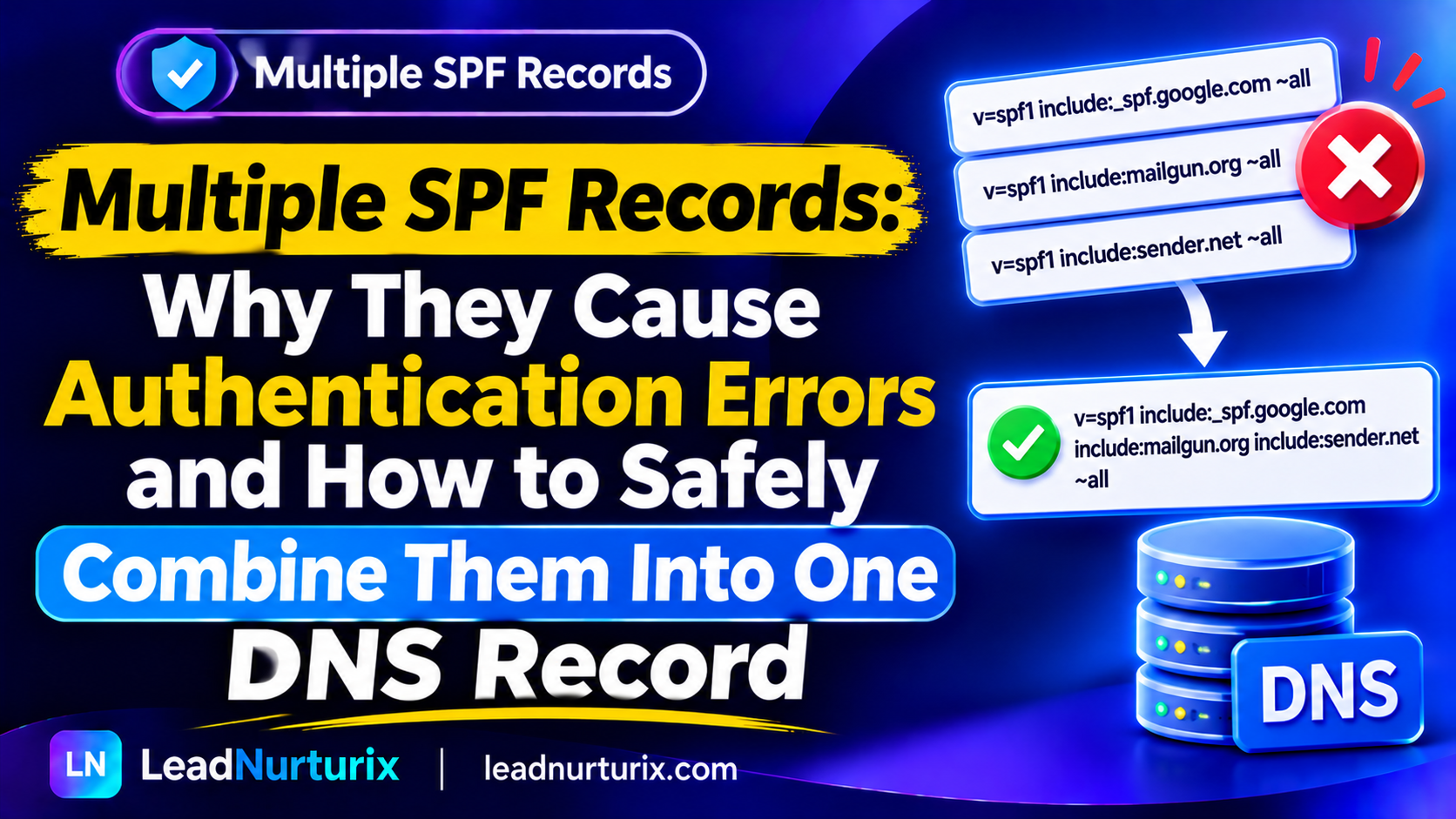
No. A domain should have only one SPF record.
If you publish multiple TXT records beginning with v=spf1 for the same domain, receiving servers may return an SPF PermError.
Instead, combine all authorized email services into one SPF record.
For example, if you use Google Workspace and Mailchimp:
v=spf1 include:_spf.google.com include:servers.mcsv.net ~allThis single record authorizes both sending services.
How to Add a Google Workspace SPF Record in Cloudflare
If Cloudflare manages your domain's DNS, you can configure SPF directly from its dashboard.
Follow these instructions:
- Sign in to your Cloudflare account.
- Select the domain you want to configure.
- Open the DNS section.
- Select DNS Records.
- Click Add Record.
- Choose TXT as the record type.
- Enter
@in the Name field. - Paste the Google Workspace SPF value into Content.
- Set TTL to Auto.
- Save the DNS record.
Your configuration should look like this:
| Field | Value |
|---|---|
| Type | TXT |
| Name | @ |
| Content | v=spf1 include:_spf.google.com \~all |
| TTL | Auto |
Important: SPF records must remain DNS-only. TXT records are not proxied through Cloudflare.
If you already have an SPF record, edit the existing entry instead of publishing another one.
For additional information, see Cloudflare's Google Workspace DNS setup documentation.
How to Verify Your Google Workspace SPF Record
Adding a DNS record does not automatically mean that SPF authentication is working correctly.
You should verify the published record and test an actual outgoing message.
Method 1: Use an Online SPF Checker
An SPF checker can retrieve your domain's public DNS TXT record and identify configuration issues.
To check your SPF record:
- Open the LeadNurturix SPF Checker.
- Enter your domain name.
- Run the SPF check.
- Review the detected record.
- Check for syntax errors and excessive DNS lookups.
A valid record should contain the Google Workspace authorization mechanism if Google is one of your sending services.
Method 2: Check SPF Authentication in Email Headers
You can also verify SPF through the headers of an email sent using Google Workspace.
Follow these steps:
- Send a test email from your Google Workspace account to another email address you control.
- Open the received message in Gmail.
- Select the three-dot menu.
- Click Show original.
- Locate the Authentication-Results section.
Look for a result similar to:
spf=passThe result indicates that SPF authentication passed for the evaluated sending domain.
You may also see DKIM and DMARC results in the same section.
For a stronger verification, confirm that the SPF-authenticated domain aligns with the domain in the visible From address when checking DMARC.
Common Google Workspace SPF Errors and Fixes
Even when an SPF record appears correct, DNS configuration problems can prevent successful authentication.
Here are some common issues and their solutions.
| SPF Error | Possible Cause | Recommended Fix |
|---|---|---|
| SPF PermError | Multiple SPF records | Combine them into one record |
| SPF Softfail | Sending server is not authorized | Add the legitimate sender |
| SPF Fail | Sender is not included in SPF | Review authorized sending services |
| SPF None | No published SPF record | Add the correct DNS TXT record |
| Too many DNS lookups | More than 10 SPF DNS-querying terms | Reduce unnecessary includes |
| Invalid SPF syntax | Incorrect formatting or spelling | Correct the record syntax |
| SPF not updated | DNS caching or propagation | Wait and check again |
1. Multiple SPF Records
This is one of the most common configuration mistakes.
If your domain has separate SPF records for Google Workspace and Mailchimp, receiving servers may return a permanent SPF error.
Solution: Combine all authorized senders into one SPF record.
2. Exceeding the 10 DNS Lookup Limit
SPF evaluation has a maximum limit of 10 DNS-querying terms.
Mechanisms such as include, a, mx, ptr, exists, and the redirect modifier can contribute to this limit.
Nested lookups also count.
For example, adding several email marketing and outreach services may cause your SPF record to exceed the limit.
Solution: Remove unnecessary sending services, eliminate duplicate mechanisms, and review nested DNS lookups.
You can inspect the lookup count using the Google Admin Toolbox Check MX.
3. Incorrect SPF Syntax
Small formatting mistakes can invalidate your SPF record.
For example:
Incorrect:
v=spf1 include:_spf.google.com -allThis is not Google's standard recommended configuration for a basic Workspace-only setup.
Recommended:
v=spf1 include:_spf.google.com ~allUse the qualifier appropriate to your sending environment rather than changing it without testing.
4. Forgetting Third-Party Email Senders
If your website, CRM, or marketing platform sends emails using your domain, those services may also need SPF authorization.
Solution: Identify all legitimate sending platforms and consolidate their authorization mechanisms into your existing SPF record.
SPF vs. DKIM vs. DMARC: What Is the Difference?
SPF, DKIM, and DMARC are three complementary email authentication protocols.
They serve different purposes and should work together to protect your domain.
| Feature | SPF | DKIM | DMARC |
|---|---|---|---|
| Full Name | Sender Policy Framework | DomainKeys Identified Mail | Domain-based Message Authentication, Reporting and Conformance |
| Main Purpose | Authorizes sending servers | Verifies email signatures | Defines handling and reporting policies |
| DNS Record | TXT | TXT | TXT |
| Primary Function | Sender authorization | Message integrity and domain authentication | Authentication alignment and policy enforcement |
Why Do You Need All Three?
SPF identifies authorized sending infrastructure.
DKIM adds a cryptographic signature that receiving servers can verify.
DMARC uses SPF and DKIM authentication results, together with domain alignment, to determine whether a message passes DMARC and what policy should apply to failures.
For Google Workspace users, configuring all three protocols provides a stronger email authentication foundation.
You can use these LeadNurturix tools to check your configuration:
Frequently Asked Questions
1. What is the correct SPF record for Google Workspace?
The recommended SPF record for a domain that sends email exclusively through Google Workspace is:
v=spf1 include:_spf.google.com ~allAdd it as a TXT record in your domain's DNS settings.
2. Does Google Workspace automatically create an SPF record?
Not always. Some domains may already have an SPF record configured by their domain provider or Google Workspace reseller.
Check your existing DNS configuration before adding a new record.
3. Where do I add the Google Workspace SPF record?
Add the SPF record through your domain's DNS provider, such as Cloudflare, GoDaddy, or Namecheap.
You do not need to add the SPF record inside the Google Admin console.
4. Can I use Google Workspace with other email services in one SPF record?
Yes. You can authorize multiple email services within one SPF record using their respective include mechanisms.
However, all services must be combined into a single SPF record, and the total DNS lookup limit must not exceed 10.
5. Should I use \~all or -all for Google Workspace?
Google recommends ~all for its standard SPF configuration.
The softfail qualifier marks unauthorized sending sources as suspicious. The -all qualifier applies a hard fail and may cause unauthorized messages to be rejected.
Do not switch to hard fail until you have confirmed that all legitimate senders are properly authorized.
6. How long does Google Workspace SPF verification take?
Google states that SPF authentication can take up to 48 hours to start working after publishing the record.
Actual DNS visibility may occur sooner, depending on caching and TTL settings.
7. Does Google Workspace SPF improve email deliverability?
A correctly configured SPF record helps receiving servers authenticate your sending infrastructure.
However, SPF alone does not guarantee inbox placement. Domain reputation, DKIM, DMARC, sending behavior, and email content also influence deliverability.
8. Can I have two SPF records for one domain?
No. A domain should publish only one SPF record.
If you have multiple email providers, combine their authorization mechanisms into one TXT record.
9. Does SPF replace DKIM and DMARC?
No. SPF, DKIM, and DMARC perform different authentication functions.
SPF authorizes sending infrastructure, DKIM verifies cryptographic signatures, and DMARC applies authentication alignment and policy instructions.
Google recommends configuring all three.
10. How can I check whether my Google Workspace SPF record is working?
Use an online SPF checker to inspect your public DNS record. You can also send a test email and review its original headers for an spf=pass authentication result.
Conclusion
A properly configured Google Workspace SPF record is an important part of protecting your business email domain and establishing reliable email authentication.
For Google Workspace-only sending, the recommended DNS TXT value is:
v=spf1 include:_spf.google.com ~allBefore publishing it, check whether your domain already has an SPF record. If you use additional email services, authorize them within the same record.
After configuration, verify your SPF syntax, review DNS lookup limits, and test outgoing messages through their email headers.
For stronger email authentication, implement DKIM and DMARC alongside SPF.
If you want to identify configuration problems before they affect your email infrastructure, use the free LeadNurturix SPF Checker to inspect your domain's SPF record.
Editorial Policy
LeadNurturix publishes educational content about email authentication, cold email infrastructure, and email deliverability.
Our articles prioritize technical accuracy, practical explanations, and actionable recommendations. We aim to reference official documentation when discussing technical standards and provider-specific configurations.
Content Transparency Statement
This article is educational and reflects publicly available email authentication guidance, including Google Workspace documentation.
DNS configurations and third-party provider requirements can change. Always confirm the latest instructions from your email service and DNS provider before making production changes.
The examples provided are intended to explain common configurations and should be adapted to your actual sending infrastructure.
About the Author
Talha Rafi – Cold Email & Email Deliverability Specialist
Talha Rafi is an email deliverability and B2B lead generation specialist with over five years of experience in cold email infrastructure, email authentication, domain configuration, and outbound campaign management.
Through LeadNurturix, he helps businesses build and optimize email outreach systems with a focus on SPF, DKIM, DMARC, sending infrastructure, and email deliverability.