A GoDaddy SPF record tells receiving mail servers which email systems are authorized to send messages using your domain. If you use GoDaddy for domain registration, DNS hosting, or email services, configuring SPF correctly is an important part of protecting your domain against email spoofing and authentication problems.
However, the correct SPF value depends on the email service sending your messages. For example, GoDaddy's documentation lists v=spf1 include:secureserver.net -all for services such as Professional Email and Microsoft 365 from GoDaddy. If you use Google Workspace or another third-party email provider, you may need a different SPF configuration.
This article explains how to add or edit an SPF record in GoDaddy, identify the correct value, check your DNS settings, and troubleshoot common configuration errors.
Quick Answer: What Is the GoDaddy SPF Record?
For GoDaddy Professional Email and Microsoft 365 from GoDaddy, the documented SPF value is:
v=spf1 include:secureserver.net -allUse this value only when it matches your email service and configuration.
To add it through GoDaddy DNS:
| Setting | Value |
|---|---|
| Type | TXT |
| Name | @ |
| Value | v=spf1 include:secureserver.net -all |
| TTL | Default |
Important: This is not a universal SPF record for every domain registered with GoDaddy. Your SPF value depends on the service that sends email for your domain. Also, only one SPF policy should exist at a given DNS hostname.
Table of Contents
- What Is a GoDaddy SPF Record?
- Which SPF Record Should You Use with GoDaddy?
- How to Add an SPF Record in GoDaddy
- How to Edit an Existing GoDaddy SPF Record
- What If Your DNS Is Not Managed by GoDaddy?
- How to Check Your GoDaddy SPF Record
- Common GoDaddy SPF Errors and Their Fixes
- SPF, DKIM, and DMARC: Understanding the Difference
- GoDaddy SPF Configuration Best Practices
- Frequently Asked Questions
1. What Is a GoDaddy SPF Record?
An SPF record is a DNS TXT record that identifies which mail servers are permitted to send email using a particular domain.
SPF stands for Sender Policy Framework. It helps receiving mail servers evaluate whether a message comes from an authorized sending source.
For example, imagine your business uses:
hello@example.comWhen an email is sent from this address, the receiving server checks the SPF policy associated with the relevant envelope-sender domain.
If the sending IP address is authorized by that policy, SPF can return a pass result. If it is not authorized, the result may be fail or another SPF evaluation result.
Why Do You Need SPF on a GoDaddy Domain?
Configuring SPF helps you:
- Identify authorized email-sending services.
- Reduce the risk of unauthorized domain use.
- Support DMARC email authentication.
- Investigate SPF failures.
- Maintain a consistent email authentication policy.
However, owning a domain through GoDaddy does not automatically mean GoDaddy is your email provider. You might register your domain at GoDaddy while using Google Workspace, Microsoft 365, or another service to send email.
Your SPF record must authorize the actual sending service, not simply the company where you purchased the domain.
2. Which SPF Record Should You Use with GoDaddy?
There is no single SPF value that works for every GoDaddy customer.
The correct record depends on your email provider and which services send messages using your domain.
GoDaddy Professional Email and Microsoft 365
GoDaddy documents this SPF value for Professional Email and Microsoft 365 from GoDaddy:
v=spf1 include:secureserver.net -allThis authorizes the sending infrastructure covered by GoDaddy's SPF policy.
If your domain, DNS, and email service are all configured within the same GoDaddy account, GoDaddy may add the SPF record automatically.
If you have Microsoft 365 from GoDaddy with the Advanced Email Security add-on, GoDaddy instructs customers to check the Email & Office Dashboard for the appropriate SPF value.
Google Workspace with a GoDaddy Domain
If your domain is registered with GoDaddy but you send business email through Google Workspace, your SPF configuration should authorize Google's sending infrastructure.
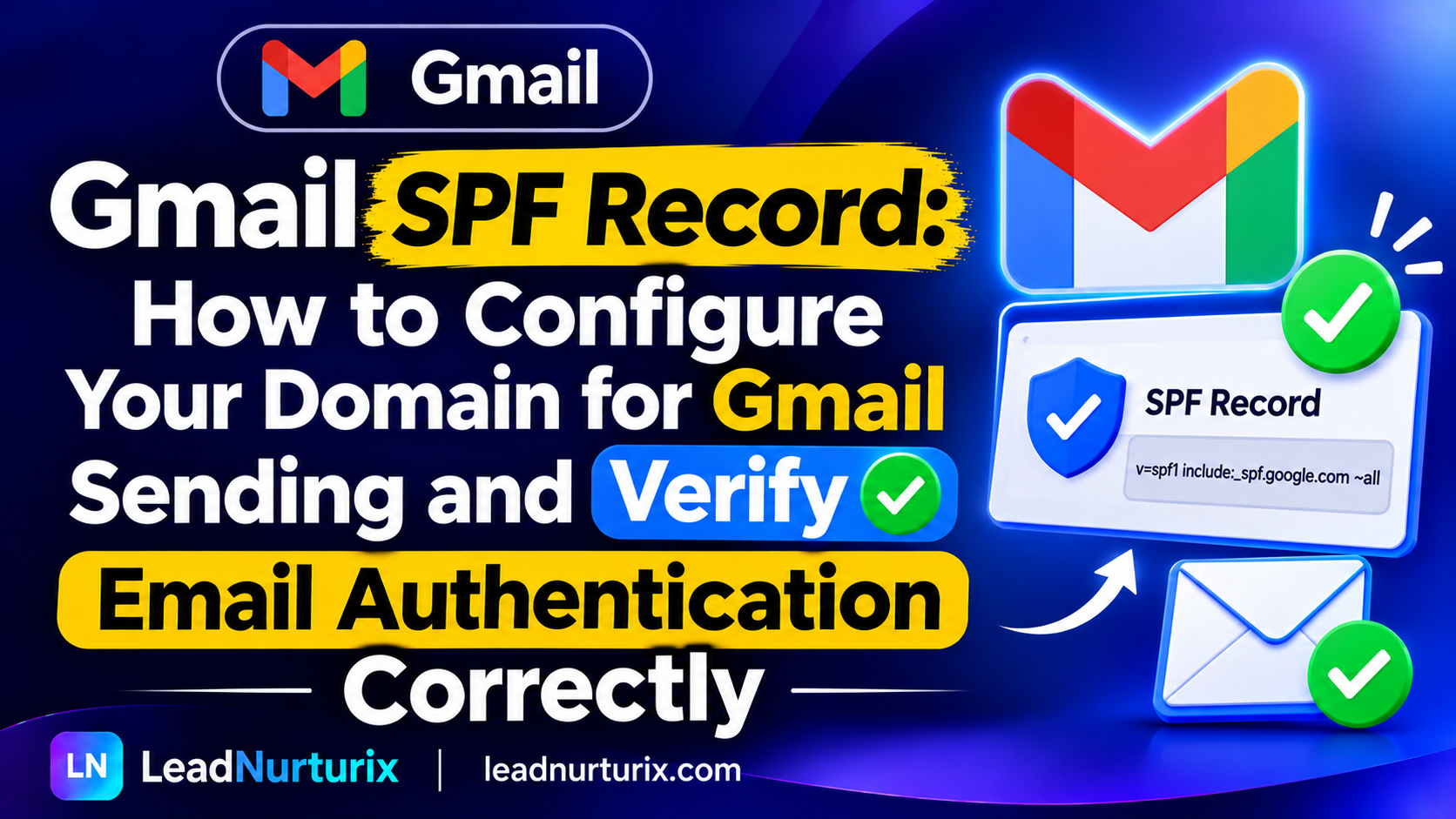
The standard Google Workspace-only example is:
v=spf1 include:_spf.google.com ~allThis is a Google Workspace example, not a GoDaddy-provided SPF value.
If you also send email through GoDaddy or other platforms using the same SPF-authenticated hostname, you may need to combine the relevant mechanisms into one SPF policy.
Third-Party Email Marketing and Sending Services
You may also use services such as:
- SendGrid
- Mailchimp
- Amazon SES
- Other email marketing or transactional email platforms
Each provider has its own authentication instructions.
If multiple services send email using the same SPF-authenticated hostname, their authorized mechanisms may need to be included in a single SPF record.
Do not add an additional SPF TXT record for every service. First identify the correct sending domains and the provider's current DNS instructions.
3. How to Add an SPF Record in GoDaddy
If GoDaddy manages your domain's DNS, you can add an SPF record through the Domain Portfolio.
Follow these steps.
Step 1: Sign In to GoDaddy
Visit the GoDaddy website and sign in to your account.
Open your Domain Portfolio and select the domain for which you want to configure SPF.
Step 2: Open DNS Settings
After selecting your domain:
- Open the Domain Settings page.
- Select DNS.
- Review the existing DNS records.
Before adding anything, check whether an SPF record already exists.
Look for a TXT record whose value begins with:
v=spf1If one already exists, you may need to edit it instead of creating another record.
Step 3: Add a New TXT Record
If you do not have an existing SPF record:
- Select Add New Record.
- Choose TXT as the record type.
- Enter the hostname.
- Add the SPF value supplied by your email provider.
- Leave TTL at its default setting unless you have a specific reason to change it.
For a root-domain SPF record, the configuration may look like this:
| Field | Example |
|---|---|
| Type | TXT |
| Name | @ |
| Value | v=spf1 include:secureserver.net -all |
| TTL | Default |
The example value applies to the relevant GoDaddy email services, not every email provider.
Step 4: Save the Record
Review the record details carefully.
Make sure:
- The record type is TXT.
- The hostname is correct.
- The SPF value matches your email provider's instructions.
- You have not created a second SPF policy at the same hostname.
Select Save to publish the DNS record.
Step 5: Allow DNS Changes to Propagate
GoDaddy states that most DNS changes take effect within an hour, but global updates can take up to 48 hours.
The actual time depends on DNS caching and propagation.
After waiting, check the record again and verify the configuration.
4. How to Edit an Existing GoDaddy SPF Record
If your domain already has an SPF record, you should usually edit it rather than add another one.
This is particularly important when you start using an additional email service.
Step 1: Find the Existing SPF TXT Record
Open your GoDaddy Domain Portfolio.
Select your domain, open DNS settings, and locate the TXT record that starts with v=spf1.
Step 2: Select Edit
Choose the edit option next to the existing SPF record.
Review the current value and identify which sending services it already authorizes.
Step 3: Update the SPF Policy
Suppose your current record is:
v=spf1 include:secureserver.net -allYou now also use Google Workspace, and both services send using the same SPF-authenticated hostname.
An illustrative combined policy could be:
v=spf1 include:secureserver.net include:_spf.google.com -allOnly use this combination if both services genuinely need authorization at that hostname and the mechanisms are appropriate for your configuration.
The important rule is that multiple sending services should be represented within one SPF policy, not several separate SPF TXT records.
Step 4: Save and Verify
Save your changes and allow time for DNS propagation.
Then inspect the published SPF record and test email authentication.
5. What If Your DNS Is Not Managed by GoDaddy?
This is one of the most common sources of confusion.
Registering a domain with GoDaddy does not necessarily mean GoDaddy manages its DNS.
Your domain might use nameservers from:
- Cloudflare
- Your web hosting provider
- Another DNS hosting company
- A managed IT or email provider
GoDaddy explains that DNS records are managed through the provider whose nameservers are authoritative for the domain.
How to Identify Your DNS Provider
Open your GoDaddy domain settings and review the nameserver configuration.
If your domain uses GoDaddy nameservers, you can normally manage its DNS records through your GoDaddy account.
If it uses another provider's nameservers, you must add or edit the SPF record through that provider's DNS dashboard.
For example, if your domain uses Cloudflare nameservers, adding an SPF record in the GoDaddy account will not update the authoritative DNS zone.
Remember: The registrar and DNS hosting provider can be two different companies.
6. How to Check Your GoDaddy SPF Record
After adding or editing an SPF record, verify that it is publicly available and that actual emails pass authentication.
You can use three methods.
Method 1: Use an SPF Checker
Open the LeadNurturix SPF Checker.
Enter your domain and inspect the published SPF policy.
A useful SPF check can help identify:
- Whether an SPF record exists.
- Whether the syntax is valid.
- Whether multiple SPF records are published.
- Whether the policy contains potential configuration problems.
- Whether DNS lookup limits may be exceeded.
Method 2: Use a DNS Lookup Command
You can also check your SPF TXT record through a command-line tool.
For Windows:
nslookup -type=TXT example.comFor macOS or Linux:
dig TXT example.comReplace example.com with your actual domain.
Look for a TXT value beginning with:
v=spf1If you use a dedicated subdomain for sending email, check the SPF hostname associated with that service as well.
Method 3: Inspect Email Headers
Send a test email from your business email account to an inbox where you can inspect the full message headers.
Find the Authentication-Results header.
A successful result may look like:
spf=pass
dkim=pass
dmarc=pass
These results are illustrative.
SPF pass means the sending IP was authorized for the relevant envelope-sender domain. It does not automatically mean DMARC passes, because DMARC also checks domain alignment.
7. Common GoDaddy SPF Errors and Their Fixes
A DNS record can look correct in your dashboard but still produce authentication problems.
Here are common issues and how to investigate them.
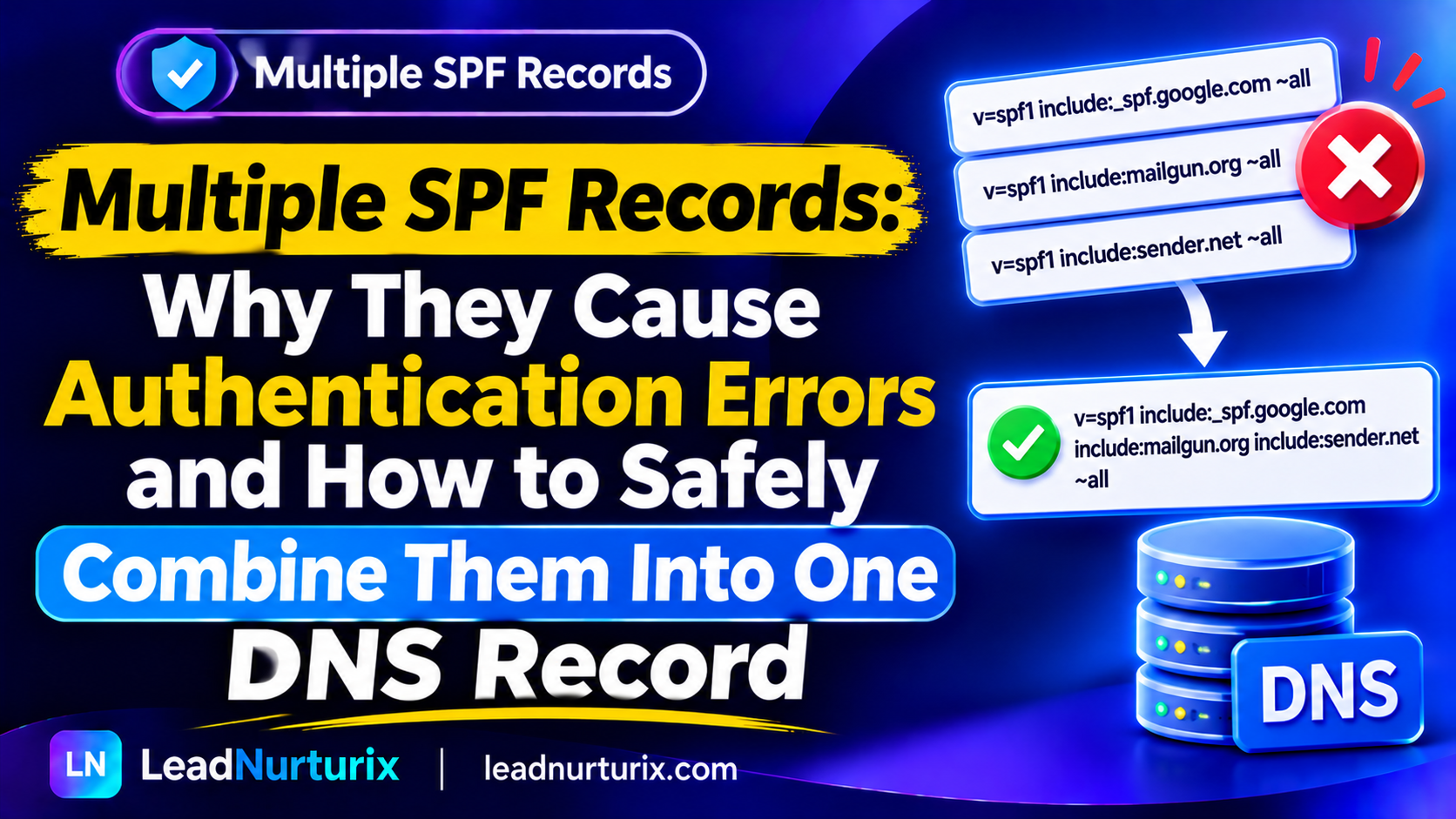
Error 1: Multiple SPF Records Found
A DNS hostname should not publish multiple independent SPF policies.
For example, this configuration is incorrect:
v=spf1 include:secureserver.net -all
v=spf1 include:_spf.google.com ~all
This can cause an SPF PermError.
How to fix it:
- Identify all services sending from the hostname.
- Check the SPF instructions for each provider.
- Combine the required mechanisms into one policy.
- Remove the duplicate SPF policy.
- Check the result again.
Do not delete a record until you understand which services depend on it.
Error 2: SPF Record Not Found
This can happen when:
- The SPF record was added to the wrong DNS provider.
- The hostname is incorrect.
- The record was not saved.
- DNS changes have not propagated.
- The record was added to a subdomain instead of the root domain, or vice versa.
How to fix it:
Check which nameservers are authoritative for your domain.
Then inspect the TXT record at the exact hostname used by your email service.
Error 3: SPF PermError
An SPF PermError indicates a permanent problem with the SPF policy evaluation.
Common causes include:
- Multiple SPF records at one hostname.
- Invalid SPF syntax.
- Exceeding the SPF DNS lookup limit.
- Problems with referenced DNS mechanisms.
How to fix it:
Review the SPF syntax and remove duplicate policies.
Also check the number of DNS-triggering lookups. SPF permits a maximum of 10 DNS lookups during evaluation.
Avoid adding unnecessary include, a, mx, exists, and redirect mechanisms.
Error 4: SPF Softfail
An SPF softfail commonly occurs when a sending IP is not authorized by the policy but the SPF record uses ~all.
For example:
v=spf1 include:secureserver.net ~allThe ~all mechanism indicates a softfail for sources that do not match the preceding mechanisms.
How to fix it:
Confirm whether the sending service is authorized.
If a legitimate provider is missing, obtain its correct SPF mechanism and update the existing policy where necessary.
Do not change ~all to -all simply to make an SPF test look stricter. First confirm that all legitimate sending services are included.
Error 5: SPF Fails After Moving DNS to Cloudflare
If you move your domain's nameservers from GoDaddy to Cloudflare, DNS management also moves to the new authoritative provider.
Your old GoDaddy SPF record may no longer be published in the active DNS zone.
How to fix it:
- Open your Cloudflare DNS dashboard.
- Locate the existing SPF record.
- Recreate the correct SPF TXT record if it is missing.
- Confirm that the hostname and value are correct.
- Run another DNS lookup.
The same principle applies when moving DNS to any other provider.
8. SPF, DKIM, and DMARC: Understanding the Difference
SPF is one part of email authentication. It works alongside DKIM and DMARC.
| Protocol | What it checks |
|---|---|
| SPF | Whether the sending IP is authorized for the envelope-sender domain |
| DKIM | Whether the message has a valid cryptographic signature |
| DMARC | Whether SPF or DKIM passes with the required alignment to the visible From domain |
Why Should GoDaddy Users Configure All Three?
A correct SPF record helps receiving servers evaluate sending authorization, but it does not independently protect every part of your email identity.
DKIM provides a separate authentication mechanism, while DMARC defines how receiving servers should handle messages that fail authentication and alignment requirements.
For a stronger configuration:
- Publish the correct SPF policy.
- Enable DKIM through your email provider.
- Publish a DMARC record.
- Review authentication results from real messages.
You can use the LeadNurturix DKIM Checker and DMARC Checker to investigate these records.
9. GoDaddy SPF Configuration Best Practices
Use these practices to avoid common email authentication problems.
1. Confirm Your Email Provider First
Do not assume that every GoDaddy domain should use include:secureserver.net.
Identify whether your messages are sent through GoDaddy Professional Email, Microsoft 365, Google Workspace, or another platform.
2. Maintain One SPF Record Per Hostname
Never create separate SPF policies for different email providers at the same DNS hostname.
Combine the valid mechanisms into one policy when necessary.
3. Check Your Nameservers
Before changing DNS records, confirm where your domain's authoritative DNS is hosted.
The company that registered your domain may not be the company managing its DNS.
4. Monitor the SPF Lookup Limit
SPF has a limit of 10 DNS lookups during evaluation.
Too many nested includes and DNS-based mechanisms can cause authentication errors.
5. Avoid Unnecessary SPF Changes
Do not modify a working SPF record without understanding the services it authorizes.
Incorrect changes can cause legitimate business emails to fail SPF authentication.
6. Test Real Emails
A DNS lookup confirms what is published. Email header inspection helps establish how receiving servers actually evaluated your message.
Use both methods when troubleshooting.
10. Frequently Asked Questions
What is the correct SPF record for GoDaddy?
For GoDaddy Professional Email and Microsoft 365 from GoDaddy, the documented value is:
v=spf1 include:secureserver.net -allOther email providers require their own SPF configuration. Always verify the value against your email provider's instructions.
Where do I add an SPF record in GoDaddy?
Sign in to your GoDaddy account, open Domain Portfolio, select your domain, and navigate to DNS. Add a TXT record with the appropriate hostname and SPF value.
Is a GoDaddy SPF record a TXT or SPF record?
SPF is published as a DNS TXT record. In GoDaddy's DNS dashboard, select TXT when adding a new SPF policy.
Does GoDaddy automatically add SPF records?
GoDaddy states that if your domain, DNS, and email are all in the same GoDaddy account, it may add the SPF record automatically. If you use another DNS provider or email service, you may need to configure it yourself.
Can I use Google Workspace with a GoDaddy domain?
Yes. You can register your domain with GoDaddy and use Google Workspace for business email.
In that case, configure SPF according to Google's instructions and make sure your authoritative DNS provider contains the record.
Can I have two SPF records on my GoDaddy domain?
You should not publish multiple SPF policies at the same hostname. If several services send email using that hostname, combine their authorized mechanisms into one valid SPF record.
How long does a GoDaddy SPF record take to update?
GoDaddy states that most DNS changes take effect within an hour, although global propagation can take up to 48 hours.
Does adding an SPF record improve email deliverability?
SPF helps authenticate your sending domain and can reduce unauthorized use. However, it does not guarantee inbox placement. Sender reputation, DKIM, DMARC, content, and recipient engagement also influence deliverability.
Conclusion
Setting up a GoDaddy SPF record starts with identifying the service that actually sends your emails. GoDaddy Professional Email and Microsoft 365 from GoDaddy use a documented SPF value, but Google Workspace and third-party sending platforms require their own authentication configurations.
Add or edit the SPF policy through the provider managing your authoritative DNS, keep only one SPF record per hostname, and verify the results after making changes.
A properly maintained SPF configuration helps receiving mail servers evaluate your messages and supports a more reliable email authentication setup.
Editorial Policy
LeadNurturix publishes educational resources about email authentication, DNS configuration, and email deliverability. Technical recommendations are based on provider documentation and established email authentication standards.
Content Transparency
SPF examples in this article are provided for educational purposes. The correct record depends on your email provider, DNS hosting arrangement, and sending configuration. Always verify the required value before making DNS changes.
About the Author
Talha Rafi is an Email Deliverability Specialist and B2B Lead Generation professional with over five years of experience in cold email infrastructure, email authentication, domain configuration, and outbound email systems. Through LeadNurturix, he shares practical insights to help businesses understand and improve their email setup.